



If you are having issues when you go to Print Gridlines in Excel, you are not alone.
In fact, this is a common issue that many Excel users face.
Spreadsheets are made up of worksheets that comprise data which is arranged in a matrix of columns and rows.
If we consider a worksheet with subscriber details for a particular service, the columns will usually signify a particular type or category of information, such as the first and last names, address, email, date the subscriber joined, etc.
Rows on the other hand, form a single and complete record about individual subscribers.
Each individual piece of data is contained in a cell that is referenced by its column and row position.
A large worksheet can span across several columns and traverse down hundreds or even thousands of rows.
To make it visually easier to work with the worksheet, Excel displays gridlines, that mark the boundary of all columns and rows, and hence, each cell.
These gridlines are displayed by default when a new worksheet is created.
However, when the worksheet is printed, by default, Excel does not print the gridlines.
Depending on the nature of the information contained in the worksheet and the overall layout, it may be desirable to include gridlines in the printout.
In this article, we are going to have a look at three different ways to include gridlines in your worksheet printouts.
Here’s How to Easily Print Gridlines in Excel:
 We will be using the above contact list as our example worksheet.
If you look closely at the tabular layout of the worksheet, you will see light gray lines between the columns, intersecting with lines separating each row.
These are the gridlines, and they clearly define and mark the bounds of each cell.
 If we now attempt to print this worksheet (with the Ctrl-P keyboard shortcut), the print preview in the snapshot above, clearly shows the lack of any gridlines.
 The first method of enabling gridlines for printouts, involves opening the Page Layout tab from the main menu, and finding the Sheet Options group.
In this group, there are two sections, one for Gridlines and the other for Headings.
Within each section, there are two check-boxes marked View and Print.
The View checkboxes enable gridlines and headings while working with your worksheet on your screen.
The Print checkboxes enable gridlines and headings in printouts.
We are of course interested in having the Gridlines > Print checkbox enabled.
 Having ticked the Print checkbox in Page Layout > Sheet Options > Gridlines, and then attempting a printout, we now see gridlines in the print wizard’s print preview.
 Another way to enable gridlines in printouts, is available from the Page Setup dialog box.
Under the Page Layout tab and in the bottom right hand corner of the Page Setup group, is a small launcher arrow.
Click this arrow to bring up the Page Setup dialog box.
 The Page Setup dialog box offers the full set of page formatting options, including the ability to print gridlines.
In the Page Setup dialog box, go to the Sheet tab, and in the Print section, tick the Gridlines check-box.
From here, you can click on one of the Print… or Print Preview buttons, which will take you straight to the print wizard, or you can click the OK (or Cancel) button and return to working on the worksheet.
The third and final way of enabling gridlines in printouts is straight from the print wizard.
From the main menu, open the File tab, and select Print in the side menu (or you can use the keyboard shortcut Ctrl-P).
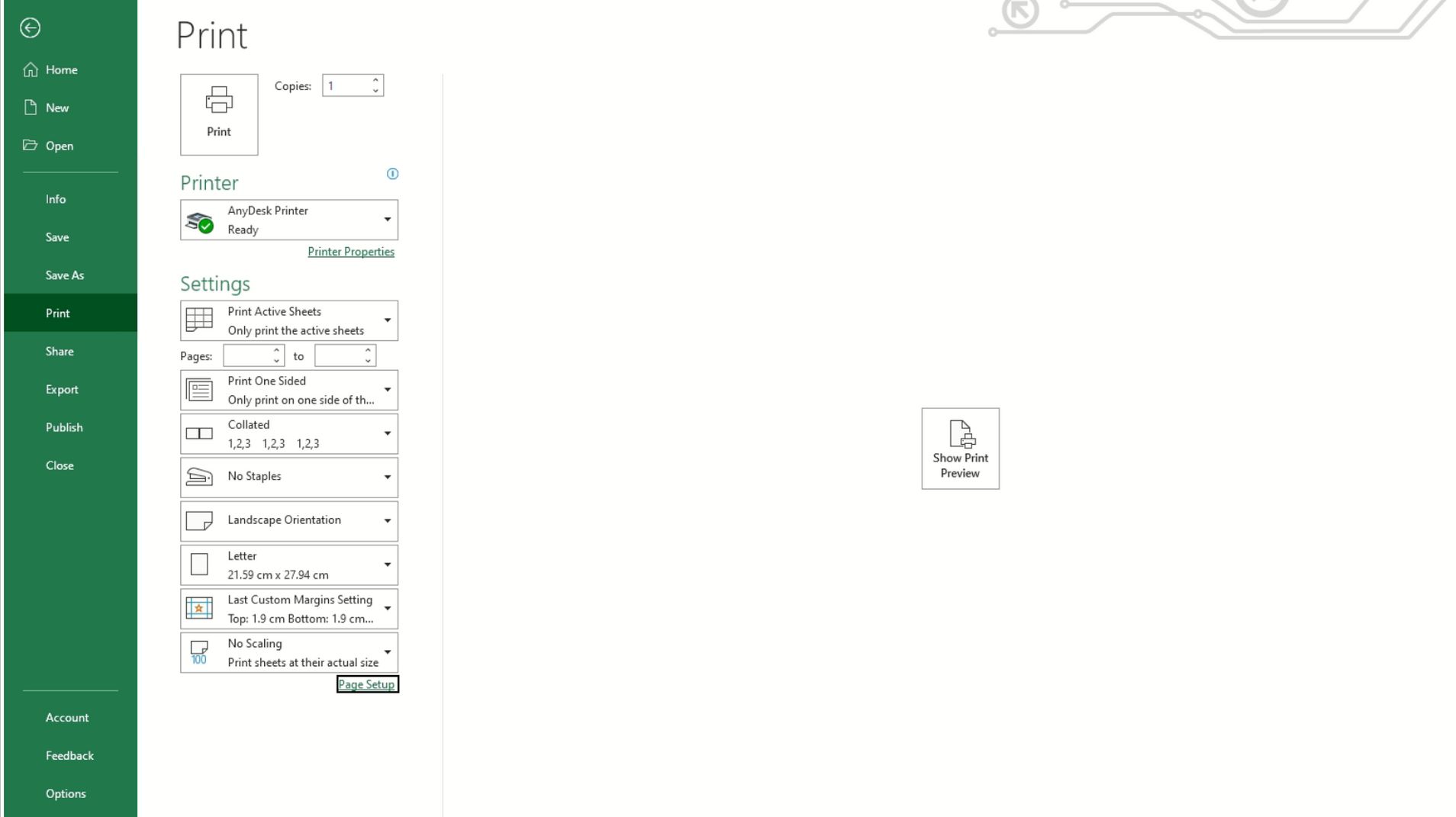 In the left hand Print pane and at the very bottom, is the Page Setup link. Clicking on this will open the Page Setup dialog box.
This is the Page Setup dialog box that we saw in the previous method when we clicked the launcher button under Page Layout > Page Setup.
 Just as before, go to the Sheet tab and make sure the Gridlines check-box in the Print section is ticked.
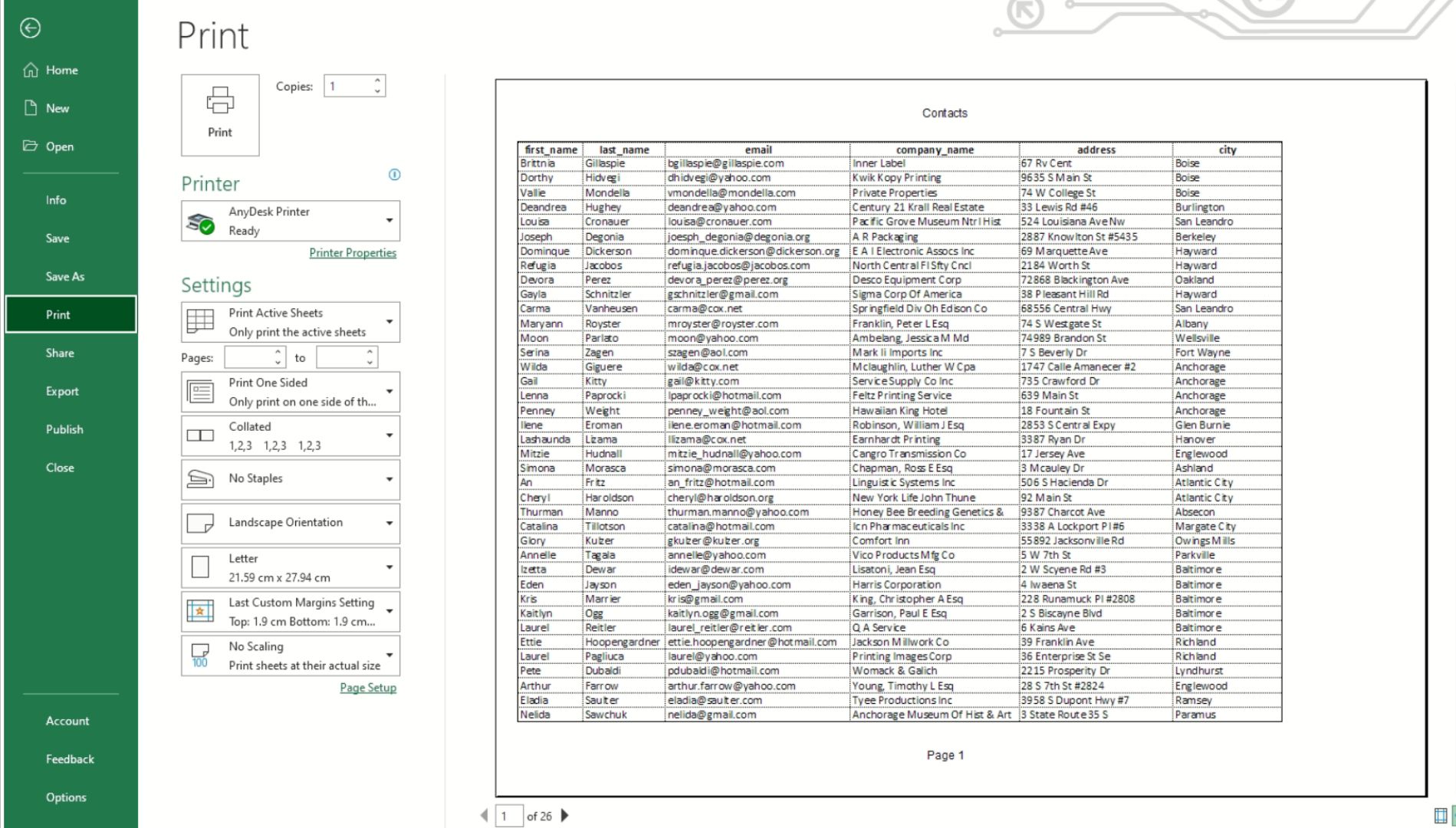 If we click OK and then check our print preview, we see that gridlines are indeed visible.
Before we finish off, it was stated at the start, that the gridlines in Excel show up in a light gray color.
It is possible to set the gridlines to a custom color, and here is how.
From the main menu, select the File tab and then Options from the side menu.
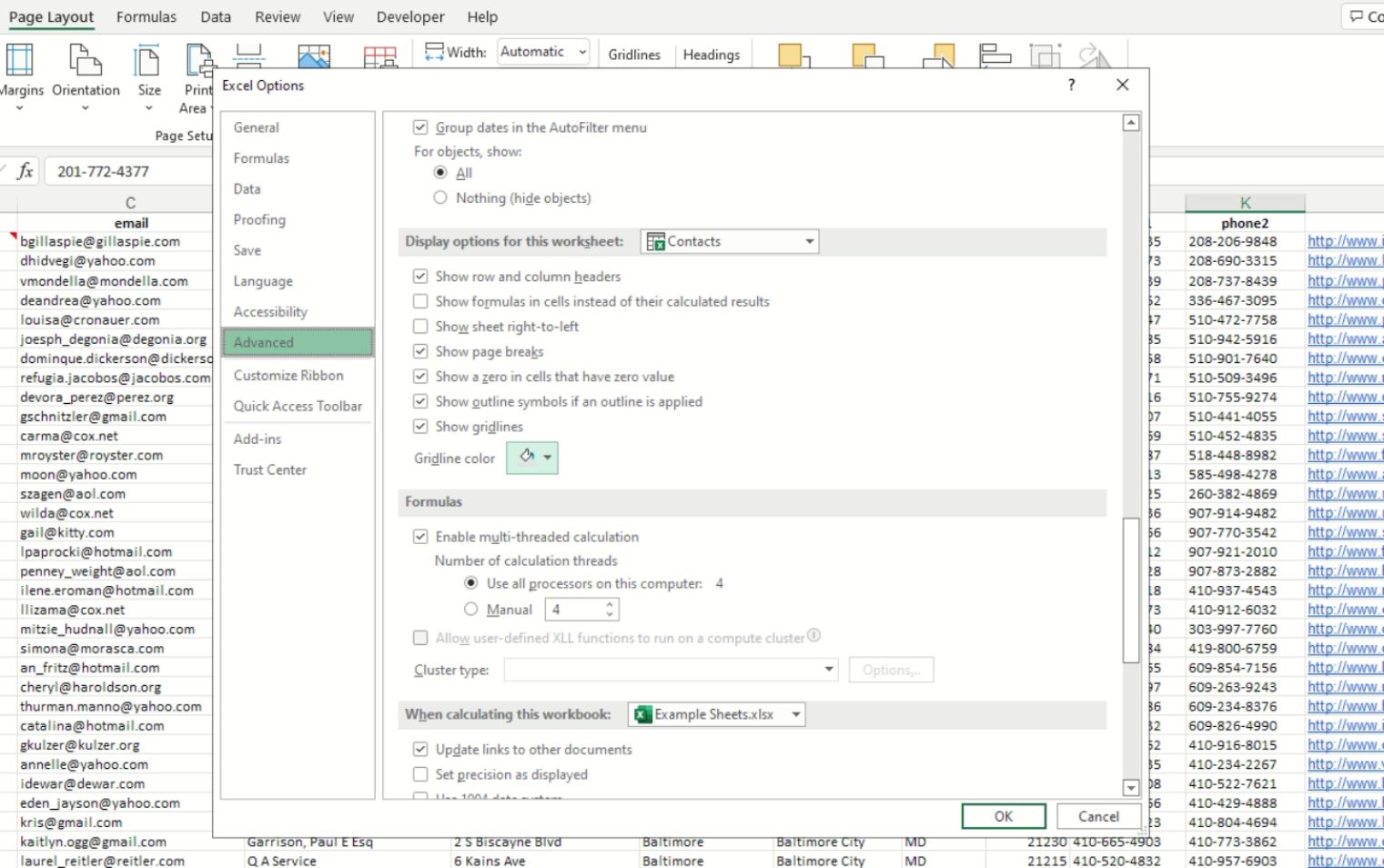 This will bring up the Excel Options dialog box as shown above.
Go to the Advanced option, and then scroll down to the Display options for this worksheet section.
The last item in this group is Gridline color.
 Clicking on this will display a color chart from which you can set a different gridline color.
Selecting Automatic will revert to the standard light gray.
 The above snapshot shows the gridlines with the color set to red.
Conclusion
Especially when working with large worksheets, gridlines make it easy to follow data across intersecting columns and rows.
By default, Excel only displays gridlines in screen view, but omits them when the worksheet is printed.
In this article, we’ve shown three quick and easy ways which allow you to print gridlines in Excel, as well as how to set the gridline color.
