


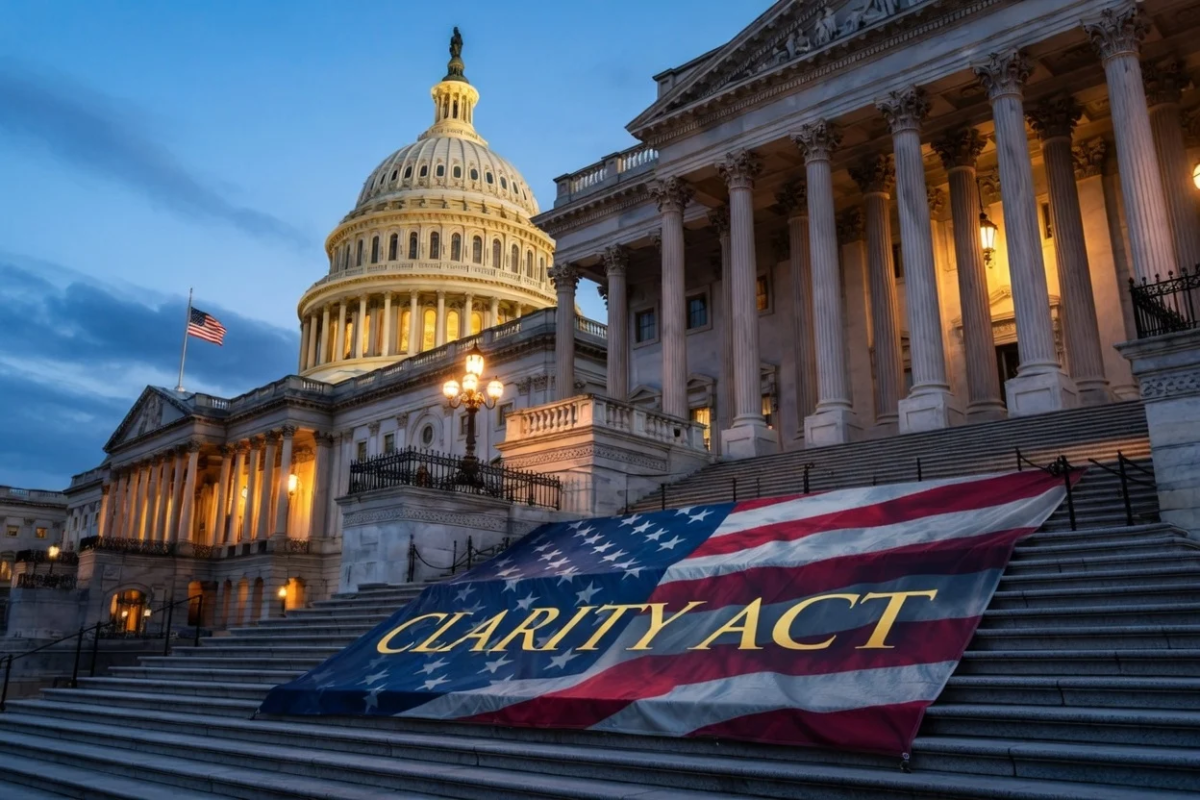
Key Takeaways
- Senate Banking Committee published the complete Clarity Act text Monday evening, just before the May 14 markup session.
- Stablecoin interest payments face significant limitations, while DeFi developers receive liability safeguards.
- Traditional banking institutions are demanding tighter controls on stablecoins, expressing concerns about deposit outflows.
- Democratic lawmakers insist on adding ethics rules targeting government officials with crypto holdings before providing support.
- Prediction markets on Polymarket show 64% probability that Trump will sign the Clarity Act this year.
Late Monday evening, the Senate Banking Committee made public the complete Clarity Act text, releasing the document mere hours ahead of the May 14 markup hearing. This comprehensive legislation represents one of Washington’s most ambitious efforts to establish formal regulatory oversight for digital asset markets.
Chairman Tim Scott emphasized that the legislation “puts consumers first, combats illicit finance, cracks down on criminals and foreign adversaries and keeps the future of finance here in the United States.”
The 309-page legislative text had been shared privately among stakeholders for weeks, reducing the element of surprise when the official version emerged. Industry participants worked through the night analyzing the final language to verify their key priorities remained intact.
Three primary policy areas dominate the bill: regulations governing stablecoin interest payments, liability protections for decentralized finance developers, and enhanced tools for federal prosecutors handling digital asset-related money laundering cases.
Banking Sector Clashes With Crypto Industry Over Stablecoin Returns
The most contentious portion addresses stablecoin interest mechanisms. Current language prohibits digital asset companies from offering yield on dormant stablecoin holdings. Rewards tied to specific user activities remain permissible.
Coinbase chief executive Brian Armstrong stated Monday that “not everyone got everything they wanted, but they got the must-haves.” He revealed that Coinbase has partnerships with five major international banks to incorporate digital asset capabilities.
Traditional financial institutions express strong dissatisfaction with these provisions. American Bankers Association chief executive Rob Nichols distributed correspondence to bank leaders encouraging them to contact their senators prior to Wednesday’s committee action.
Nichols cautioned that existing language would “unnecessarily incentivize the flight of bank deposits into payment stablecoins, putting both economic growth and financial stability at risk.”
Banking trade associations submitted additional correspondence to Banking Committee members requesting stricter limitations on stablecoin reward structures.
Analysis from Galaxy Digital countered these warnings, suggesting that stablecoin expansion will primarily attract offshore capital into American financial infrastructure rather than causing domestic deposit migration.
Ethics Language Missing From Current Draft
The published bill lacks provisions addressing conflicts of interest that would restrict government officials from earning profits through cryptocurrency holdings. These requirements fall under a different committee’s authority and require separate legislative action.
Democratic senators have established the ethics provisions as mandatory for securing their votes. Senator Elizabeth Warren characterized the bill as turbocharging “Donald Trump’s crypto corruption,” citing at least $1.4 billion in digital asset profits accumulated by the president and his relatives since inauguration.
White House crypto policy adviser Patrick Witt indicated the administration welcomes broadly applicable ethics standards for government personnel while opposing measures designed to target individual officeholders.
Republican committee members are positioned to approve the bill during Wednesday’s markup session following party-line voting patterns. Following committee passage, the measure must be reconciled with separate legislation from the Senate Agriculture Committee before reaching the full chamber.
Sixty affirmative votes are required for Senate floor passage, necessitating Democratic support beyond Republican ranks. White House officials aim for completion by Independence Day. Senator Kirsten Gillibrand forecasts final passage during early August.
Polymarket betting markets currently assign 64% probability that Trump will enact the Clarity Act into law during the calendar year.
